Important: the description below contains a number of steps which you have to go through if you're using journal entries in ActivMan. If you omit this, it may lead to differences in your journal entries.
Before you start...
Before carrying out the update, we recommend that you first go through the list with changes and improvements. Only then you will be able to benefit fully from all improvements. Click here to open the list in a new window.
Starting the update
The update consists of the following steps:
- Important: once started, the update process is irreversible.
Therefore, ensure that you have a COMPLETE, FUNCTIONAL and USABLE copy
of all your administration and software programs. Also if, during the
update process, something goes wrong (e.g. a power cut or sudden network
failure), you should always be able to revert to a comprehensive backup
of the files, in the state they were in before the update. You can,
incidentally, make a backup yourself by simply copying all ActivMan files
to a different location.
Also, during the update, no users should be logged in to the McHil programs,
including yourself (for example, in another session). This is because during
the update process, no files should be in use.
You will also need to have supervisor status to be able to start the update.
- Start ActivMan in the usual way. Re-index all files of ActivMan with your current
version. The re-indexing is done via menu File > Maintenance.
If you have multiple administrations, your system administrator should ideally use the McTools utility for re-indexing the files. This program is in the same folder as ActivMan and has to be executed in one of the existing administrations. McTools then automatically checks and re-indexes this administration and all other administrations and creates a corresponding report.
- If you use Journal entries, it is recommended to delete journal entries that are
more than one year old. Especially when you have been using ActivMan for a long time,
the size of these files can easily exceed many MBs. You can delete the journal entries
via menu Journal entries > Delete old entries.
Then select the function Adjustments last period. If this results in adjustment entries, you will have to incorporate these in your accounts. Use this function again to make sure that there are no further adjustment entries.
- Is everything fine so far? Then go to the main menu of ActivMan. Select menu Help
> Search for updates. McUpdate is then started. If you don't have McUpdate or
can't find McUpdate, you can download it here.
Are you using Windows 7? In that case ActivMan may indicate that McUpdate can't be found. Solution: start ActivMan by right-clicking the icon with which you start ActivMan and choose "Als administrator uitvoeren" (Execute as administrator). McUpdate can then be started.
- McUpdate will establish a connection with the update-server and, if successful, possibly update itself and
restart after your confirmation
NOTE: If you don't succeed in making a connection with the server, this may be caused by the settings of your router or firewall. Please check these settings. If needed, contact your system administrator or hardware supplier. McUpdate will then start searching for the available ActivMan updates. In the window, you will see which updates are available, as shown in the below example:
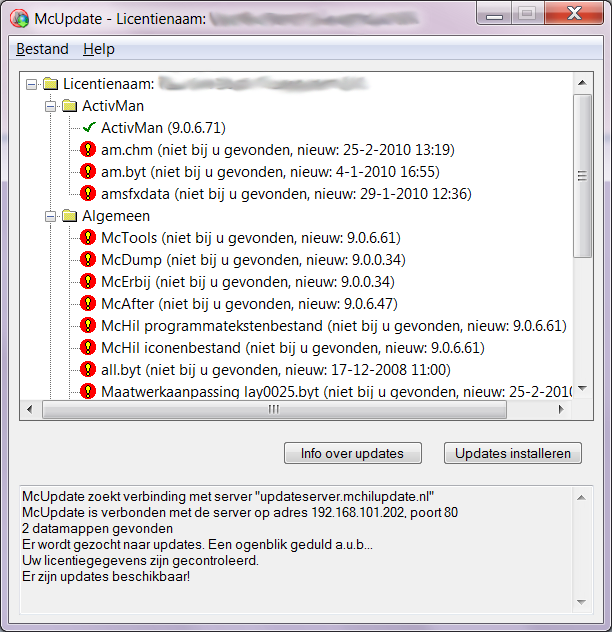
With the button Info over updates (Info about updates) you will get more information about the updates, and with the button Install updates you can install the updates. Are you ready for the update? If so, click on the button Install updates. During the installation, the status window below will keep you informed about the progress of the update(s):
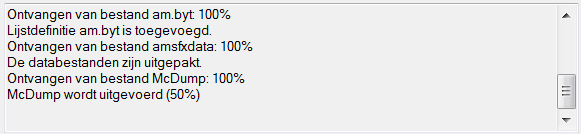
During the installation, autonomous programs may run, for example to update the list definitions in your administration. These programs and screens may flash by quickly; this is normal and no reason for concern. - When the update is complete, you will see the following message:
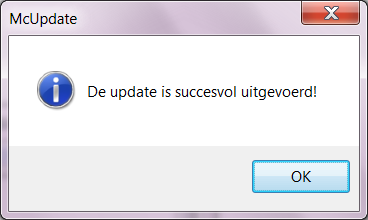
You can then start working with the updated programs.
- Start the new ActivMan. Re-index all files again. The re-indexing is done via menu File > Maintenance
(or via the McTools program as described above).
- If you use journal entries, once again select the function Adjustments last period in the menu Journal entries.
If this results in adjustment entries, you will have to incorporate these in your accounts. Use this function again
to make sure that there are no further adjustment entries.
If you encounter any problems after the update, please send an email to the McHil helpdesk.